When setting up your RØDECaster Video or RØDECaster Video S, you may encounter a situation where all other audio is working correctly, but audio from your saved video clips is silent.
This typically occurs when the Video Clips audio channel has not been added to the Audio Mixer. To hear clip audio, you must ensure the appropriate channel is enabled.
You can add the Video Clips channel either directly on the device or through the RØDECaster App.
Method 1: Add Video Clip Audio on the RØDECaster Video / S
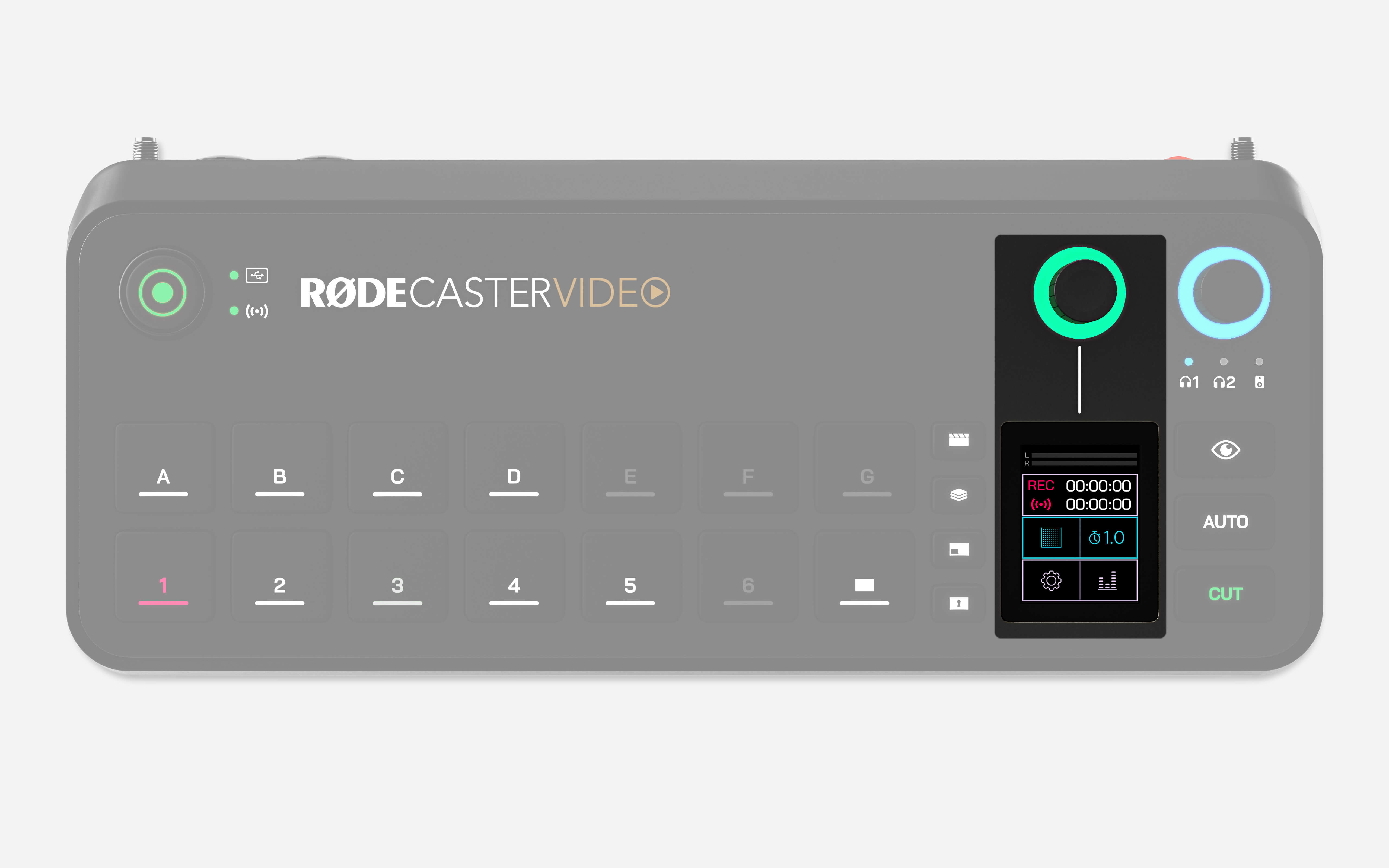
- From the Home screen, tap the bottom-right icon or press the encoder to open the Audio Mixer.
- Scroll using the encoder or tap the arrows until you reach ADD OR REMOVE CHANNELS.
- Tap the screen to open the list of available audio channels.
- Scroll through the list and locate VIDEO CLIPS.
- Press the encoder to enable the checkbox for Video Clips.
- If necessary, remove an unused channel to free space by selecting it and pressing the encoder.
- Return to the Home screen. The Video Clips channel will now appear in the mixer.
Method 2: Add Video Clip Audio Using the RØDECaster App
.jpg)
- Open the RØDECaster App and select the Audio Mixer.
- Click the + (Add Channel) button to the right of the last fader.
- If the button is not visible, remove an unused channel using the red X at the top of the fader.
- From the list of available channels, select VIDEO CLIPS.
Once the Video Clips channel has been added, audio from your saved clips will play normally through the mixer.
Related Article: For more information about audio channels on the RØDECaster Video and RØDECaster Video S, see Setting Up Audio Sources on the RØDECaster Video .
If you're still having issues with the product, please reach out to our Service Team via the contact page for further assistance.