The NTH-100M can be connected to a mixer for headphone monitoring, microphone input, or both.
The NTH-100M includes a splitter cable that connects to the supplied TRRS cable. The splitter separates the headphone and microphone signals into two 3.5mm (1/8") connections, identified by headphone and microphone icons.
Connect the NTH-100M Splitter Cable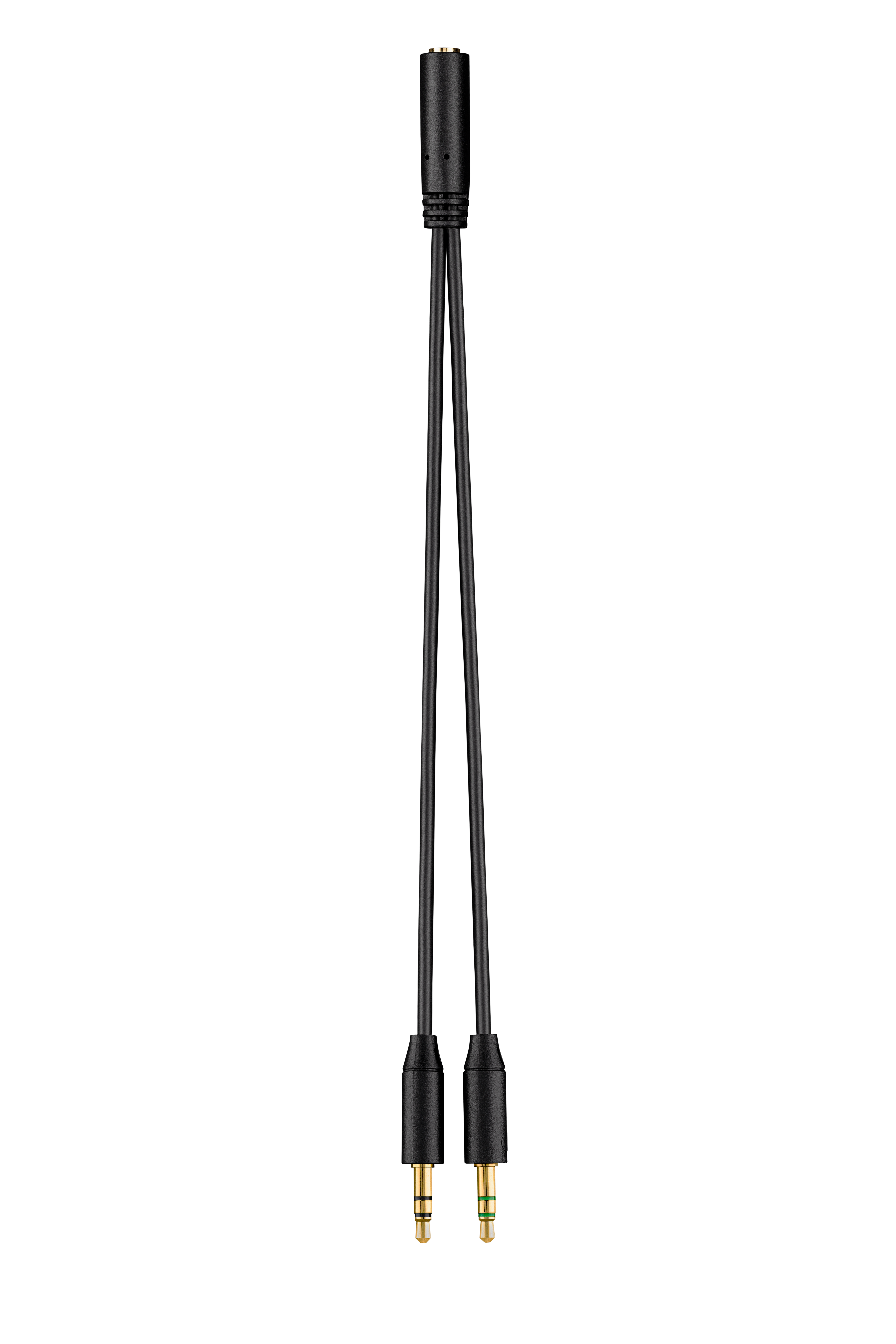
- Connect the supplied TRRS cable to the NTH-100M.
- Connect the other end of the TRRS cable to the supplied splitter cable.
- Identify the two 3.5mm (1/8") connectors using the icons on the splitter:
- Headphone icon
- Microphone icon
Connect the Headphones for Audio Monitoring
Use the 3.5mm (1/8") connector marked with the headphone icon to monitor audio from your mixer.
- Connect the headphone connector directly to a 3.5mm headphone output on your mixer.
- If your mixer uses a 6.5mm (1/4") headphone output, connect the headphone plug using a suitable 3.5mm to 6.5mm (1/4") adapter.
Connect the NTH-100M Microphone to a Mixer
Use the 3.5mm (1/8") connector marked with the microphone icon when connecting the NTH-100M microphone to a mixer.
When connecting the microphone to an XLR microphone input, the NTH-100M microphone requires plug in power.
You can use a RØDE VXLR PRO or VXLR+ when connecting the NTH-100M microphone to an XLR input. These adapters allow the required plug in power to be supplied to the microphone.
- Connect the splitter cable's microphone connector to a RØDE VXLR PRO or VXLR+.
- Connect the adapter to the required XLR microphone input on your mixer.
- Ensure the connection is providing the required plug in power for the NTH-100M microphone.
Using Headphone Monitoring and the Microphone Together
Both connections from the splitter cable can be used at the same time. Connect the headphone output to your mixer's headphone connection for monitoring, and connect the microphone output to the appropriate microphone input.
This allows you to monitor audio through the NTH-100M headphones while using its microphone as an input to your mixer.
For more information about NTH-100M, please see our NTH-100M User Guide.